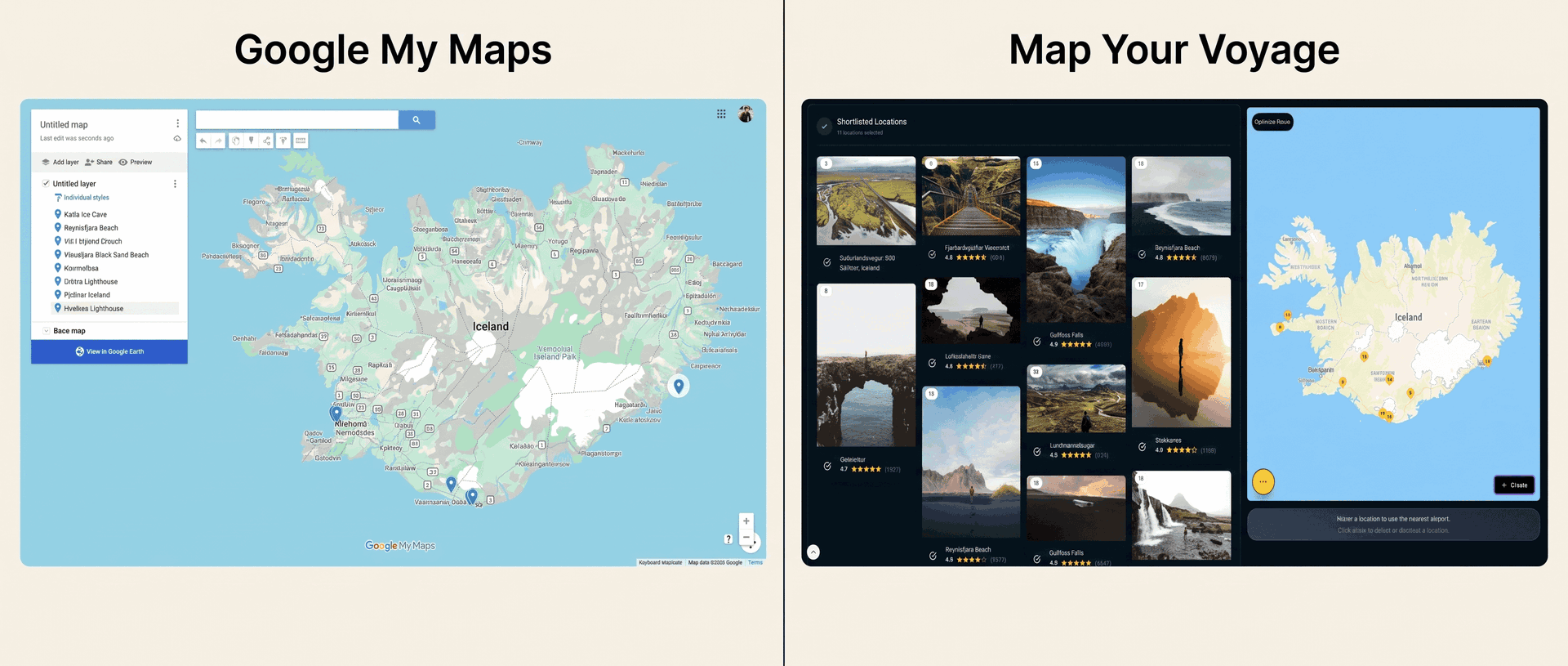
Every serious trip planner eventually discovers Google My Maps. It is the power-user move: when saved pins and screenshots stop being enough, you open a blank custom map, create a layer per day, color-code food in blue and sights in red, and pin everything you have researched. Hours later, you have something genuinely beautiful — the kind of map travel bloggers embed in their guides.
And yet the night before the trip, a familiar problem returns: a custom map full of pins still does not tell you what to do on Tuesday. Map Your Voyage attacks the same problem from the opposite direction — instead of you building the map by hand, it gets places out of the Instagram reels that inspired you and turns them into a day-by-day, hour-by-hour itinerary automatically. This guide compares the two honestly: where My Maps is genuinely unbeatable, where it quietly runs out of road, and which tool fits which kind of traveler. (If you are thinking of the pins you save inside the main Google Maps app — Favorites, Want to go — that is a different comparison: see Google Maps saved places vs Map Your Voyage.)
Spent hours pinning a custom map and still don't have a plan? Shortlist the places you love — or paste your saved reels — and watch them become a mapped, hour-by-hour itinerary. Unlimited locations, free.
Try the travel itinerary planner →The Short Version
| Google My Maps | Map Your Voyage | |
|---|---|---|
| Core idea | A blank canvas for building custom maps by hand | Plan trips from Instagram reels with verified locations |
| How you add places | Search by name, drop pins, or import CSV / KML files | Watch curated reels and shortlist — or paste / DM reel links |
| From a reel to the map | Manual: identify the spot yourself, search it, pin it | Automatic: paste or DM the reel and AI extracts its locations |
| Organization | Up to 10 layers per map, ~2,000 places per layer, color-coded | Country-specific bucket lists, built automatically |
| Itinerary | None — layers can mimic days, but there is no schedule | Day-by-day and hour-by-hour, with an optimized visiting order |
| Routes | Directions layers max 10 waypoints, no optimization | Unlimited locations, across multiple countries |
| On your phone | View-only in the Google Maps app; editing is desktop-only | Plan in any browser; use the itinerary on the road |
| Navigation | None — tap one pin at a time into Google Maps | Opens each day's route in Google Maps |
| Sharing & collaboration | Share like a Google Doc, co-edit, embed on websites | Solo-first discovery and curation |
| Booking | None — pins don't book | Optional human concierge with a price-match guarantee |
| Pricing | Free | Free to plan; pay only to book a custom trip |
| Best for | Hand-crafted visual maps, embeds and group research | Turning saved reels into a real, scheduled trip |
Features and limits reflect publicly available information at the time of writing (June 2026) and can change; check each provider for current details.
What Google My Maps Does Well
Google My Maps is the lesser-known sibling of Google Maps: a free, browser-based builder for custom maps, stored in your Google Drive. It is the tool behind almost every “map of every place in this guide” you have seen embedded in a travel blog. You start with a blank map, search for places or drop pins anywhere, organize them into layers, and style everything with custom colors and icons.
As a mapping canvas, it is genuinely great:
- A true blank canvas. Pins, lines, shapes, measured distances, custom icons and colors — if you can imagine the map, you can draw it.
- Layers are real organization. Up to 10 layers per map that you can toggle on and off — the classic setup is one layer per day, or layers by theme: food, sights, beaches, hikes.
- Built for scale. Roughly 2,000 places per layer and up to 10,000 per map — a different universe from the 500-place lists and flat saved pins of regular Google Maps.
- Bulk import. Feed it a CSV, XLSX, KML or GPX file and it pins every row — if your research already lives in a spreadsheet, this is a superpower.
- Collaboration and embedding. Share a map like a Google Doc, let friends co-edit it, publish it with a link, or embed the interactive map on any website.
- Free, forever, with a Google account. No tiers, no paywalls, no upsells.
The trade-off: My Maps is a drawing tool, not a planning tool, and it shows in five places. Everything is manual — you must already know each place's name before you can pin it. There is no schedule — a layer named “Day 2” is a label, not a plan, with no times, no order and no feasibility check. Directions layers cap at 10 waypoints each, in the order you add them, with no route optimization (we cover that gap across all tools in our guide to the best apps to plot locations and optimize routes). On a phone, your map is view-only inside the Google Maps app — the dedicated My Maps mobile app was discontinued in 2021, editing requires a desktop browser, and My Maps content is not included in offline maps. And the product has been essentially unchanged for years, so none of this is likely to improve soon.
What Is Map Your Voyage?
Map Your Voyage starts from a different observation: in 2026, travel research does not begin in a spreadsheet — it begins in an Instagram reel. So instead of handing you a blank canvas, it lets you watch destinations through curated travel reels, videos and photos from real creators, and builds the map and the plan for you from the spots you actually liked.
Here's how a typical session works:
- Open a country page under Destinations or jump straight into the Travel Itinerary Planner and watch curated reels of that destination's top spots.
- When a reel makes you think “I want to go there,” tap the circle icon below it to shortlist that location.
- Every shortlisted place drops onto an interactive map with a human-verified geolocation — the pin is the place in the reel, not an algorithm's best guess.
- Already have reels saved? Paste any reel link into the planner — or DM it to the Map Your Voyage Instagram account — and AI extracts the locations from the footage and caption, then files them into country-specific bucket lists automatically.
- Need somewhere no reel covers? Search for any location and add it from autocomplete suggestions, exactly like you would in Google Maps.
- Switch countries from a dropdown and keep adding, building one list across multiple destinations in a single session.
- Hit create, and Map Your Voyage generates a day-by-day and hour-by-hour itinerary that routes you efficiently through everything you picked — which you can refine by drag and drop.
There's also a Travel Inspiration feed for endless scrolling and bucket-list building, and when you would rather someone else handle the logistics, the Book a Custom Trip service has a human team arrange hotels, flights and activities for you. Discovering places and building itineraries is free and unlimited — no per-trip cap, no “upgrade to keep planning” wall.
Getting Places Onto the Map
Both tools end with pins on a map. The difference is how much of your evening it takes to put them there.
With Google My Maps, the map assumes you arrive already knowing what to pin. The search box wants a name — so when your inspiration is an Instagram reel, the detective work comes first: hunt for a geotag, read the caption, scroll the comments hoping someone asked “where is this?”, maybe try Google Lens on a screenshot. Only then can you search the place, pin it, pick the right layer and color it. Repeat forty times. (We wrote a whole guide on exactly this grind: how to find where an Instagram reel was filmed.) The CSV import is brilliant — but only if you have already done that detective work into a spreadsheet, which is the expensive part.
With Map Your Voyage, the reel is the input. Paste its link into the planner — or DM it on Instagram — and AI extracts every location in it from the actual footage, the caption and any on-screen text, then pins them on an interactive map and files them into a country-specific bucket list. If the same waterfall appears in three reels, it shows up once, and you can see exactly which reels each location came from. Pasting links is unlimited and free, and anything a reel does not cover you can still add by search.
Accuracy is the quiet differentiator. Viral travel content is notorious for vague or plain wrong geotags, and a hand-built My Maps map inherits every mistake you make while guessing which pin matches which reel. The curated reels you browse inside Map Your Voyage are verified by a human — the pin is the place in the footage, so you will not ride two hours to find the “hidden lagoon” was tagged at the wrong end of the island.
From a Custom Map to an Actual Itinerary
Say you did it: sixty pins across Portugal, six color-coded layers, a thing of beauty. Now turn it into Tuesday.
In Google My Maps, that step is entirely yours. The one-layer-per-day trick organizes pins visually, but it cannot tell you the order to visit them, whether day three is actually walkable, or that you have put eleven stops into one afternoon. Directions layers draw a line between at most 10 waypoints, in the order you typed them — there is no optimization, and with a 10-layer ceiling per map, a packed week eats your layers fast. Most My Maps planners end up running the real itinerary in a spreadsheet next to the map, which is exactly the two-tool workflow the map was supposed to replace.
In Map Your Voyage, the shortlist becomes the plan. One click turns everything you selected into a day-by-day, hour-by-hour itinerary with an optimized visiting order that minimizes backtracking — across unlimited locations and even multiple countries in one trip (here is the full playbook for that: how to plan a multi-country trip). You can drag activities between days and add new finds later. The 10-waypoint ceiling never enters the picture, because by the time you need directions, the trip is already broken into sensible days.
Layers, Imports, Collaboration & Sharing
Credit where due: as a shareable artifact, a My Maps map is hard to beat. Send the link and anyone can explore it. Invite friends and they can co-edit — everyone drops their recommendations onto a shared canvas before a group trip. Embed it in a blog post and readers get an interactive map of your whole guide. Add KML/KMZ export and spreadsheet import, and My Maps is the closest thing travel has to a free, portable mapping standard. If the deliverable of your planning is a map other people will use, My Maps is the right tool, full stop.
Map Your Voyage plays a different game. It is solo-first: there is no real-time co-editing of a trip with friends (if collaborative itineraries are your priority, see our Wanderlog comparison), and it does not try to be a drawing canvas — no layers to color, no shapes to draw, no CSV import. What it gives you instead is organization you never have to do: every place you shortlist, paste or DM lands in a bucket list for its country automatically, with the original reel attached, so opening the Thailand list a year later brings the inspiration back with the pins. My Maps remembers what you pinned; Map Your Voyage also remembers why.
From Plan to Actually Booking
Google My Maps ends at the map. Pins carry the basic place card, but there are no hotel links tied to your plan, no flight or activity bookings, and nothing that connects the map you made to the trip you must now assemble — every booking happens in other tabs, stitched together by you.
Map Your Voyage connects the plan to the booking in two ways. From any stop in your itinerary you can jump to nearby hotels on Booking.com, Airbnb, Expedia or Vrbo — the booking site opens with its map already centered on that exact location — plus nearby transport, restaurants and essentials. And if you would rather not assemble it all yourself, the custom trip service has a human team build and book the whole thing — hotels, flights and activities — with a price-match guarantee and a free quote within 24 hours, no account required.
Pricing
Google My Maps is completely free with a Google account — layers, imports, sharing, embedding, all of it. There has never been a paid tier, which fits what it is: a mapping utility, not a travel product.
Map Your Voyage is also free for the entire planning experience — browsing reels, pasting unlimited reel links, building bucket lists across every country, and generating unlimited day-by-day, hour-by-hour itineraries. You only pay if you choose to book a fully customized trip through the concierge service, and that price comes with the price-match guarantee. There is no subscription required just to plan.
Pricing and limits change over time, so always check each provider's site for current details.
Who Should Use Which?
Google My Maps is the right tool if…
- The map itself is the deliverable — an embed for your blog, a shared canvas for group research, an archive of everywhere you have been.
- Your research already lives in a spreadsheet and bulk CSV import will save you hours.
- You want friends to co-edit the map and drop their own recommendations on it.
- You genuinely enjoy hand-crafting layers and don't need a schedule, an optimized order or mobile editing.
Use Map Your Voyage if…
- Your travel inspiration comes from Instagram and you are tired of manually hunting down where reels were filmed before you can even pin them.
- You want the organizing done for you — places filed by country automatically, with the original reels attached.
- You want an actual schedule: day-by-day and hour-by-hour, in an optimized order, not a beautiful map you still have to decode each morning.
- Your days have more than 10 stops, or your trip spans multiple cities and countries.
- You need the plan to work on your phone, hand off each day's route to Google Maps, and survive the trip itself.
- You'd like the option of a human concierge to book the whole trip with a price-match guarantee.
Keep My Maps for the maps you want to show people. For the trip you actually need to take — turn your reels and shortlists into a mapped, hour-by-hour itinerary, free.
Build my itinerary →The Verdict
These two tools answer different questions. Google My Maps answers “how do I put everything I know on one map?” — and as a free, collaborative, embeddable canvas with layers and imports, it remains the best answer there is. If you are a travel blogger, a group-trip researcher, or someone who simply loves the craft of a hand-built map, keep using it; nothing here replaces it.
But if the question is “how do I turn what inspired me into a trip I can actually take?”, a canvas is the slow way there. Map Your Voyage collapses the whole pipeline My Maps leaves manual: the reel detective work, the pinning, the country-by-country organizing, the day-splitting, the route ordering — down to watching, tapping and one click, with a day-by-day, hour-by-hour itinerary at the end that opens in Google Maps when it is time to move.
The honest summary: My Maps when the map is the point. Map Your Voyage when the trip is.
Frequently Asked Questions
Is Google My Maps good for planning a trip?
It is good for the mapping half of trip planning: a free canvas where you can plot up to 10,000 places per map, organize them into 10 color-coded layers, import spreadsheets, and share or embed the result. It is weak at the planning half: there is no concept of days or times, directions layers cap at 10 waypoints with no route optimization, and on a phone the map is view-only with no turn-by-turn navigation. Most travelers who want an actual schedule pair or replace it with a dedicated itinerary planner such as Map Your Voyage.
Can Google My Maps make a route with more than 10 stops?
Not in one route. You can plot thousands of pins, but each directions layer supports a maximum of 10 waypoints, drawn in the order you add them, with no optimization — and a map holds at most 10 layers in total. To route more stops you split them across multiple directions layers by hand. A trip planner like Map Your Voyage has no stop ceiling: it splits unlimited locations into sensible days with an optimized visiting order, then opens each day's route in Google Maps.
Can you use Google My Maps for navigation on your phone?
Only indirectly. Custom maps can be viewed inside the Google Maps app, but they are view-only on mobile: no editing, no turn-by-turn navigation along a directions layer, and My Maps content is not included in offline maps. To navigate, you tap one pin at a time and jump into regular Google Maps. The dedicated My Maps mobile app was discontinued in 2021, so editing happens in a desktop browser.
What is the difference between Google My Maps and Map Your Voyage?
Google My Maps is a manual canvas: you search places you already know by name, pin them, organize layers, and the output is a custom map you read yourself. Map Your Voyage is a trip planner built around Instagram: you watch curated travel reels with human-verified locations, or paste and DM reel links to have AI extract their locations automatically, shortlist the spots you love across multiple countries, and generate a day-by-day, hour-by-hour itinerary with an optimized visiting order — which then opens in Google Maps for navigation.
How do you turn a Google My Maps map into a day-by-day itinerary?
My Maps cannot do it for you — the usual workaround is one layer per day, but you still decide each day's stops, order and timing yourself, and directions layers cap at 10 waypoints. The faster way is a planner built for the job: in Map Your Voyage you shortlist destinations from curated Instagram reels, paste reel links to extract their locations, or add any place via search, and one click generates a day-by-day, hour-by-hour itinerary with an optimized visiting order — refinable by drag and drop, with each day's route opening in Google Maps.
Can you plan a trip from Instagram reels with Google My Maps?
Only manually. My Maps has no connection to Instagram: for every reel you have to identify the place yourself from the geotag, caption or comments (here's our full guide to finding where a reel was filmed), then search for it and pin it. Map Your Voyage automates this — paste the reel's link or DM it to the Map Your Voyage Instagram account and AI extracts the locations from the footage and caption, pins them on an interactive map, and files them into country-specific bucket lists. The curated reels you browse inside Map Your Voyage go further: their locations are verified by a human.
Are Google My Maps and Map Your Voyage free?
Both are free. Google My Maps is completely free with a Google account, including layers, imports, sharing and embedding. Map Your Voyage is free for the entire planning experience — browsing curated reels, pasting unlimited reel links, building bucket lists and generating unlimited day-by-day, hour-by-hour itineraries. You only pay if you choose to book a fully customized trip through its concierge service, which comes with a price-match guarantee and a free quote within 24 hours.
Sources & further reading
- Google My Maps — the official product.
- Google My Maps Help Center — documented limits on layers, places per layer and imports.
- Google Maps Help: Get directions — multi-stop routes and the waypoint limit.
- Google Maps saved places vs Map Your Voyage — the sibling comparison, for pins saved in the main app.
- Best apps to plot locations on a map and optimize routes — route optimization across all the major tools.
- How to find where an Instagram reel was filmed — the manual methods and the automatic one.
- How to plan a multi-country trip — from scattered ideas to one itinerary.
- Wanderlog vs Map Your Voyage — how a collaborative trip organizer compares.
Product details reflect publicly available information at the time of writing (June 2026) and may change.