Almost every trip in 2026 starts the same way: you see somewhere incredible — usually in an Instagram reel — and you save it. For most people, “saving it” means a pin in Google Maps. A heart, a flag, a star. Months later, you have hundreds of pins scattered across the planet, a folder of screenshots, and a trip to actually plan.
Let's be clear up front: Google Maps is the best map ever built, and this comparison will not pretend otherwise. But collecting pins and planning a trip are different jobs. Map Your Voyage exists for the second job — turning the places that inspired you, especially the ones you found on Instagram, into a mapped, day-by-day and hour-by-hour plan. This guide compares the two honestly, shows where each genuinely wins, and explains why the smartest setup is usually both.
Sitting on a pile of saved reels and a wall of pins? Paste your favorite reels into the planner and watch them become a mapped, hour-by-hour itinerary — unlimited locations, free.
Try the travel itinerary planner →The Short Version
| Google Maps (Saved Places) | Map Your Voyage | |
|---|---|---|
| Core idea | The world's map: search, save pins, navigate | Plan trips from Instagram reels with verified locations |
| How you collect places | Search for places you found elsewhere, then save them | Watch curated reels and shortlist — or paste / DM reel links |
| From a reel to the map | Manual: identify the spot yourself, search it, save it | Automatic: paste or DM the reel and AI extracts its locations |
| Organization | Flat lists (Favorites, Want to go, custom) — up to 500 places each | Country-specific bucket lists, built automatically |
| Itinerary | None — lists have no days, order or schedule | Day-by-day and hour-by-hour, with an optimized visiting order |
| Routes | Max 10 stops per route, in the order you add them | Unlimited locations, across multiple countries |
| Navigation | Best in class — turn-by-turn, live traffic, offline maps | Opens each day's route in Google Maps |
| Sharing | Shared & collaborative lists | Solo-first discovery and curation |
| Booking | Hotel & restaurant links on place cards | Optional human concierge with a price-match guarantee |
| Pricing | Free | Free to plan; pay only to book a custom trip |
| Best for | Navigating and exploring once you're there | Turning saved reels into a real, scheduled trip |
Features and limits reflect publicly available information at the time of writing (June 2026) and can change; check each provider for current details.
What Google Maps Saved Places Do Well
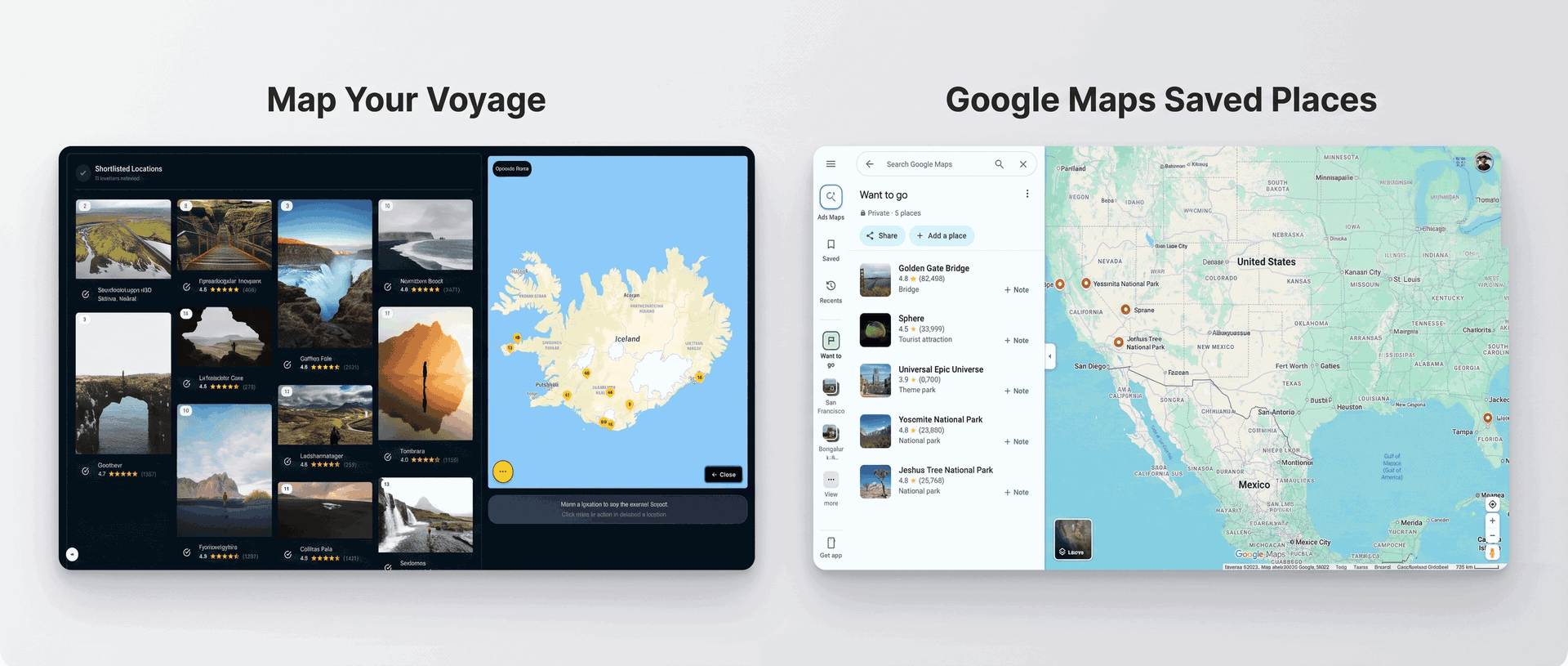
If you have ever tapped Save on a place in Google Maps, you know the system: every place can be added to Favorites, Want to go, Starred places, or a custom list you name yourself, with optional notes. Saved pins sync across your devices and show up on the map itself — little hearts, flags and stars sprinkled over every city you have ever dreamed about.
As a place bank, it is genuinely excellent:
- It is already on your phone. No new app, no new account — saving a place takes two taps in the app you navigate with every day.
- Pins live on the real map. While wandering a city you can open Google Maps and instantly see which saved spots are nearby. For spontaneous, in-destination decisions this is unbeatable.
- World-class place data. Every pin carries reviews, photos, opening hours, busy times, menus and contact details — the richest place database in existence.
- Offline maps. Download a region and your map, pins and driving navigation keep working without data.
- Shared and collaborative lists. Send a list to a friend or let them add places to it — handy for collecting recommendations before a trip.
- It is catching up on screenshots. Google has been rolling out a feature (US and iOS first) that scans your screenshots with Gemini and files recognized places into a list — a clear admission of how most of us actually collect travel ideas now.
The trade-off: a saved place is a bookmark, not a plan. Three structural gaps show up the moment you try to plan a real trip from your pins. First, lists are flat — no days, no visiting order, no schedule, just an undifferentiated pile (capped at 500 places per list). Second, directions support at most 10 stops per route, in the order you add them, with no optimization — we cover this in depth in our guide to the best apps to plot locations and optimize routes. Third, Google Maps can only save a place after you have figured out what it is called — and if your inspiration comes from Instagram reels, that detective work is entirely on you.
What Is Map Your Voyage?
Map Your Voyage starts where your wanderlust actually starts: the reel. Instead of asking you to already know a place's name, it lets you watch destinations — through curated Instagram travel reels, videos and photos from real creators — and plan from the spots you actually liked.
Here's how a typical session works:
- Open a country page under Destinations or jump straight into the Travel Itinerary Planner and watch curated reels of that destination's top spots.
- When a reel makes you think “I want to go there,” tap the circle icon below it to shortlist that location.
- Every shortlisted place drops onto an interactive map with a human-verified geolocation — the pin is the place in the reel, not an algorithm's best guess.
- Already have reels saved? Paste any reel link into the planner — or DM it to the Map Your Voyage Instagram account — and AI extracts the locations from the footage and caption, then files them into country-specific bucket lists automatically.
- Switch countries from a dropdown and keep adding, building one list across multiple destinations in a single session.
- Hit create, and Map Your Voyage generates a day-by-day and hour-by-hour itinerary that routes you efficiently through everything you picked — which you can refine by drag and drop.
There's also a Travel Inspiration feed for endless scrolling and bucket-list building, and when you would rather someone else handle the logistics, the Book a Custom Trip service has a human team arrange hotels, flights and activities for you. Discovering places and building itineraries is free and unlimited — no per-trip cap, no “upgrade to keep planning” wall.
From Instagram Reel to Pin on a Map
This is the difference that decides everything else, because it is where modern trip planning actually begins.
With Google Maps, getting a reel onto your map is a manual investigation. You watch the reel, hunt for a geotag or a name in the caption, scroll the comments hoping someone asked “where is this?”, maybe screenshot it and try Google Lens — and only then can you search Google Maps and tap Save. Repeat for every reel. We wrote a whole guide on exactly this grind: how to find where an Instagram reel was filmed. Google's new screenshot-scanning list helps when a screenshot contains a recognizable name, but it is still rolling out, and it cannot watch a video, read its caption, or tell you which of the five places in a “top spots in Bali” reel is which.
With Map Your Voyage, the reel is the input. Paste its link into the planner — or DM it on Instagram — and AI extracts every location in it from the actual footage, the caption and any on-screen text, then pins them on an interactive map and files them into a country-specific bucket list. If the same waterfall appears in three reels, it shows up once, and you can see exactly which reels each location came from. Pasting links is unlimited and free.
And mis-tagged reels are not a rare edge case — viral travel content is notorious for vague or plain wrong geotags. That is why the curated reels you browse inside Map Your Voyage go a step further: every location in them is verified by a human, so the pin is the place in the reel and you will not ride two hours to find the “hidden lagoon” was tagged at the wrong end of the island. Google Maps' own pins are accurate, of course — the risk is in the step where you guess which pin matches the reel.
From Pins to an Actual Itinerary
Fast-forward to the week of the trip. You have 40 saved places in Lisbon. Now what?
In Google Maps, the itinerary is you. Each morning you open the map, squint at the cluster of pins, guess which ones are near each other, and build directions by hand — 10 stops at a time, in the order you typed them, because the consumer route planner neither accepts more nor optimizes the sequence. Nothing tells you that the viewpoint closes at 5pm, that Tuesday's plan zigzags across the city three times, or that you have scheduled eleven things into one afternoon. Plenty of travelers make it work with discipline, a spreadsheet, or by rebuilding every pin in Google My Maps — but the app itself offers a map, not a plan.
In Map Your Voyage, the shortlist becomes the plan. One click turns everything you selected into a day-by-day, hour-by-hour itinerary with an optimized visiting order that minimizes backtracking — across unlimited locations and even multiple countries in one trip. You can drag activities between days, add new finds later, and when the plan is ready, open each day's route — or the leg between any two stops — in Google Maps for turn-by-turn directions. The 10-stop ceiling never enters the picture, because the days are already broken up sensibly by the time navigation begins.
Organizing & Sharing Your Places
Google Maps gives you full manual control: custom lists with names, notes and icons, shareable by link, and optionally collaborative so friends can add their recommendations. If you have the discipline to maintain a “Tokyo 2026” list with notes on every entry, it works well — and for gathering group suggestions before a trip, shared lists are genuinely great.
The catch is that the default behavior — tapping Want to go on everything that excites you — produces what travelers lovingly call the pin graveyard: hundreds of saves spanning years and continents in one flat list, with no memory of why you saved them or which reel they came from. Organizing it into per-trip lists is a manual chore most people never do.
Map Your Voyage organizes automatically: every place you shortlist, paste or DM lands in a bucket list for its country, with the original reel attached so you always remember why it is there. Open the Thailand list a year later and the inspiration is intact, ready to become an itinerary. The honest flip side: it is solo-first — there is no real-time co-editing of a trip with friends the way Google Maps' collaborative lists (or a tool like Wanderlog — see our Wanderlog comparison) allow.
From Plan to Actually Booking
Google Maps is helpful at the edges of booking: place cards link out to hotel prices and dates, many restaurants can be reserved through the listing, and contact details are a tap away. But it books nothing trip-shaped — flights, multi-stop accommodation and activities all live in other tabs, and the stitching is up to you.
Map Your Voyage connects the plan to the booking in two ways. From any stop in your itinerary you can jump to nearby hotels on Booking.com, Airbnb, Expedia or Vrbo — the booking site opens with its map already centered on that exact location — plus nearby transport, restaurants and essentials. And if you would rather not assemble it all yourself, the custom trip service has a human team build and book the whole thing — hotels, flights and activities — with a price-match guarantee and a free quote within 24 hours, no account required.
Pricing
Google Maps is free, including saved places, lists, offline maps and navigation. There is nothing to upgrade to and nothing trip-planning-specific to pay for — which is consistent with what it is: a map with bookmarks, not a trip planner.
Map Your Voyage is also free for the entire planning experience — browsing reels, pasting unlimited reel links, building bucket lists across every country, and generating unlimited day-by-day, hour-by-hour itineraries. You only pay if you choose to book a fully customized trip through the concierge service, and that price comes with the price-match guarantee. There is no subscription required just to plan.
Pricing and limits change over time, so always check each provider's site for current details.
Who Should Use Which?
Google Maps alone is enough if…
- It's a short city break with a handful of spots you already know by name.
- You plan loosely on purpose — wander, open the map, see what saved pins are nearby.
- Your stops fit in a single 10-stop route and you don't mind ordering them yourself.
- You mainly need navigation, opening hours and reviews — not a schedule.
Add Map Your Voyage if…
- Your travel inspiration comes from Instagram and you are tired of manually hunting down where reels were filmed.
- You want your saved spots organized by country automatically — with the original reels attached — instead of one giant “Want to go” pile.
- You want an actual schedule: day-by-day and hour-by-hour, in an optimized order, not a cloud of pins to decode each morning.
- Your trip has more than 10 stops, or spans multiple cities and countries.
- Accuracy matters: every reel in the curated library has a human-verified location, so the pin is the place you watched.
- You'd like the option of a human concierge to book the whole trip with a price-match guarantee.
Keep Google Maps for the road. Use Map Your Voyage for everything before it — turn the reels you already saved into a mapped, hour-by-hour trip, free.
Build my itinerary →The Verdict
This one, honestly, is not a fight. Google Maps is the best navigation and place-information tool ever made, and every trip — including every trip planned on Map Your Voyage — ends up inside it. If all you need is a place to remember spots and a way to reach them, you already have the right app on your phone.
But if your camera roll is full of screenshots, your saved-reels folder is overflowing, and your “Want to go” list has become a graveyard of good intentions, Map Your Voyage covers the layer Google Maps was never built for: getting places out of Instagram reels and onto a map, organizing them by country automatically, and turning a shortlist into a day-by-day, hour-by-hour itinerary — which then opens in Google Maps when it is time to move.
So the real answer is the setup most of our travelers run: plan with Map Your Voyage, navigate with Google Maps. Keep the map. Add the plan.
Frequently Asked Questions
Can you plan a trip with Google Maps saved places?
You can collect a trip with Google Maps saved places, but not really plan one. Saving pins to lists like Want to go is excellent for remembering spots, and the pins appear on the map as you move around. But a list has no days, no visiting order and no schedule, multi-stop directions cap at 10 stops, and Google Maps does not optimize the order of your stops. Most travelers pair their saved pins with a dedicated itinerary planner such as Map Your Voyage, which turns selected places into a day-by-day, hour-by-hour route.
How do you turn Google Maps saved places into a day-by-day itinerary?
Google Maps itself cannot convert a saved list into an itinerary — you have to manually decide each day's stops and build directions in batches of 10. The faster way is a planner built for the job: in Map Your Voyage you shortlist destinations from curated Instagram reels, or paste reel links to extract their locations, and one click generates a day-by-day, hour-by-hour itinerary with an optimized visiting order. You can then open each day's route in Google Maps for turn-by-turn navigation.
What are the limits of Google Maps for trip planning?
The widely documented limits: lists hold up to 500 places each, directions support a maximum of 10 stops per route, and stops are routed in the order you add them with no optimization. There is also no concept of days, times or an itinerary — saved places are a flat collection of pins. For navigation, live traffic, reviews and opening hours, however, Google Maps remains the best tool available.
What is the difference between Google Maps saved places and Map Your Voyage?
Google Maps saved places are bookmarks on the world's best map — ideal for remembering spots and navigating to them, with reviews, hours and photos. Map Your Voyage is a trip planner built around Instagram: you watch curated travel reels with human-verified locations, or paste and DM reel links to have AI extract their locations automatically, shortlist the spots you love across multiple countries, and generate a day-by-day, hour-by-hour itinerary — which then hands off to Google Maps for actual navigation.
Does Map Your Voyage replace Google Maps?
No — and it does not try to. Map Your Voyage covers the planning phase: discovering places from Instagram reels, verifying their locations, and building a day-by-day, hour-by-hour itinerary. Once the itinerary is built, you open each day's route directly in Google Maps for turn-by-turn navigation, live traffic and offline maps. Think of it as a planning layer that sits on top of Google Maps, not a replacement for it.
How do I get locations from Instagram reels onto a map?
Manually, you identify each place from the geotag, caption or comments, then search for it in Google Maps and save a pin — slow, and easy to get wrong (here's our full guide to finding where a reel was filmed). The automatic way: paste the reel's link into Map Your Voyage, or DM it to the Map Your Voyage Instagram account, and AI extracts the locations from the actual footage and caption, pins them on an interactive map, and organizes them into country-specific bucket lists. Pasting links is unlimited and free. The curated reels you browse inside Map Your Voyage go a step further — their locations are verified by a human.
Is Map Your Voyage free?
Yes. Browsing reels, pasting reel links, building bucket lists and generating unlimited day-by-day, hour-by-hour itineraries are all free. You only pay if you choose to book a fully customized trip through its concierge service, which comes with a price-match guarantee and a free quote within 24 hours.
Sources & further reading
- Google Maps Help: Save your favorite places — how lists work and their limits.
- Google Maps Help: Get directions — multi-stop routes and the stop limit.
- Google Maps official blog — feature announcements, including screenshot lists.
- Best apps to plot locations on a map and optimize routes — the 10-stop problem, in depth.
- How to find where an Instagram reel was filmed — the manual methods and the automatic one.
- Google My Maps vs Map Your Voyage — the custom-map builder, compared in depth.
- Wanderlog vs Map Your Voyage — how a dedicated trip organizer compares.
- Mindtrip vs Map Your Voyage — how an AI-first planner compares.
Product details reflect publicly available information at the time of writing (June 2026) and may change.